Database's Backups
On this page, you can find what database’s Backups are, how to connect backup storage, create and schedule backups and restore a Database from a backup in the Cloud Console.
Table of contents
Introduction
Database’s Backups keep a copy of your data in your own S3 storage, which makes it safer than Replicas. You can back up at any time or on a schedule. Everything is on the BACKUPS TAB of the Database details page (there is no separate scheduler tab). Backups need connected backup storage first.
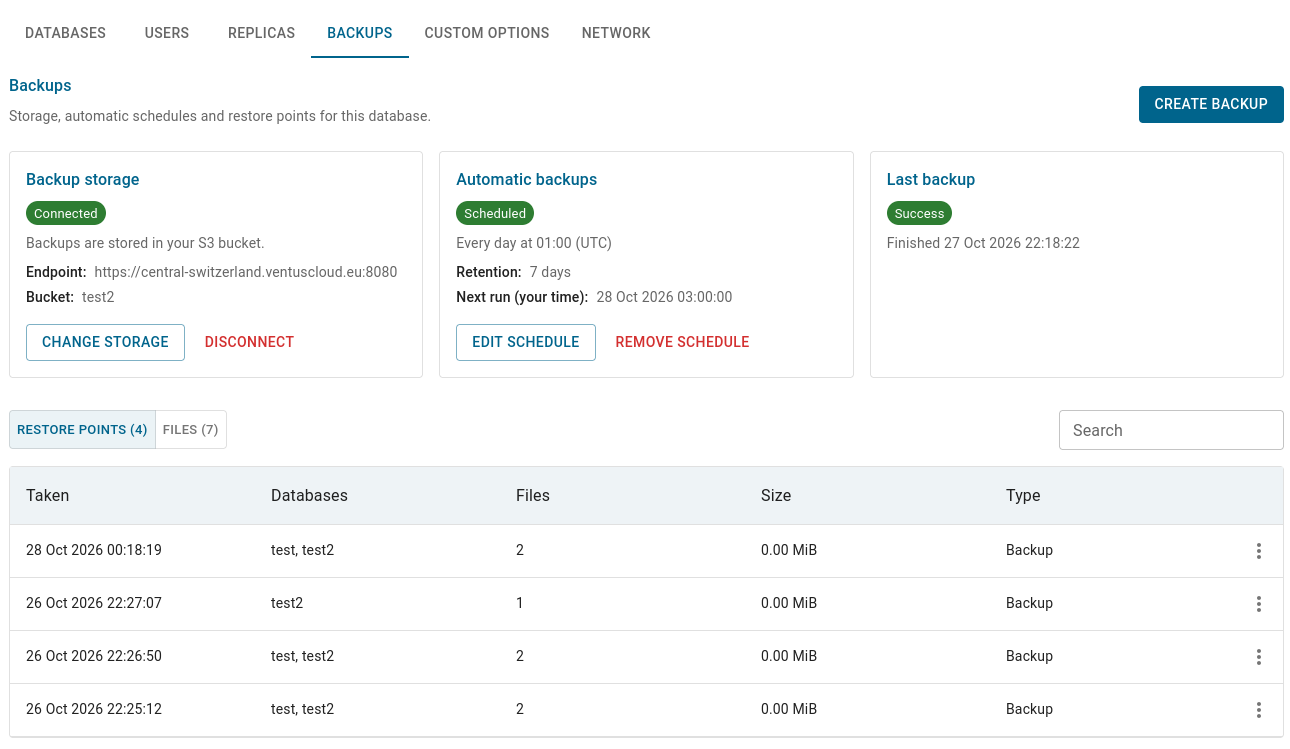
| Part of the tab | Description |
|---|---|
| CREATE BACKUP | makes a backup now |
| Backup storage card | the S3 bucket where backups are stored |
| Automatic backups card | the schedule and retention |
| Last backup card | the result (Success or Failed) and the finish time of the last backup |
| Restore recovery card | appears only when a copy of the data from before the last restore exists |
| table | Restore points (one row per backup) or Files (every file in the bucket), switched with the toggle above the table |
One backup writes one file per database (Redis: one file for the whole data set); the files of one backup form a restore point. The Backup block of the details area shows the Backing up and Restoring states and the result of the last backup. A failed backup is shown in the notice Last backup failed with the reason; while a backup or a restore runs, the notice Backup in progress says that new backups, restores and storage changes are unavailable until it finishes.
Backup storage
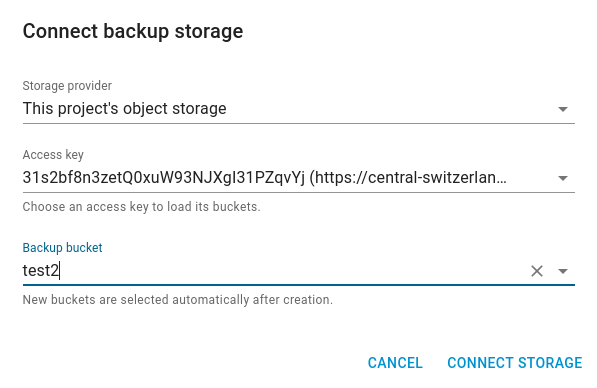
Click Connect storage in the Backup storage card (Change storage when storage is already connected). Choose the Storage provider:
| Provider | Fields |
|---|---|
| This project’s object storage | Access key - an Object Storage access key of your Project; the buckets of the key load after you select it. Backup bucket - the bucket for backups. If you have no key or bucket yet, create it with Create access key or Create backup bucket at the end of the list; the new one is selected automatically. See Object Storage Credentials |
| External S3 storage | S3 endpoint (starts with http:// or https://), Bucket name, Access key and Secret key of a bucket that is somewhere else |
If keys or buckets cannot be loaded, the window shows the error with a retry button. When the storage is connected, the card shows its Endpoint and Bucket, and the details area shows the S3 Endpoint and the S3 Key as Configured (the secret is never shown). Disconnect removes the link. Connecting, changing and disconnecting are not available while a backup or a restore is in progress.
Automatic backups
Click Set schedule (Edit schedule if one exists) in the Automatic backups card; it is available when the storage is connected.
| Setting | Description |
|---|---|
| Repeat | Every day (backup time); Every week (day of the week and time); Every month (day 1-31, days 29-31 skip shorter months, and time); Every hour (minute past each hour); Custom cron (advanced) - a cron expression of five fields: minute, hour, day of month, month, day of week |
| Timezone | the time zone of the backup time; by default the one of your browser; the time follows its daylight-saving changes |
| Keep backups for | Days (1-99), or Custom duration in the format 7d12h0m (days, hours, minutes, maximum 99d23h59m). Older backups of the schedule are removed automatically |
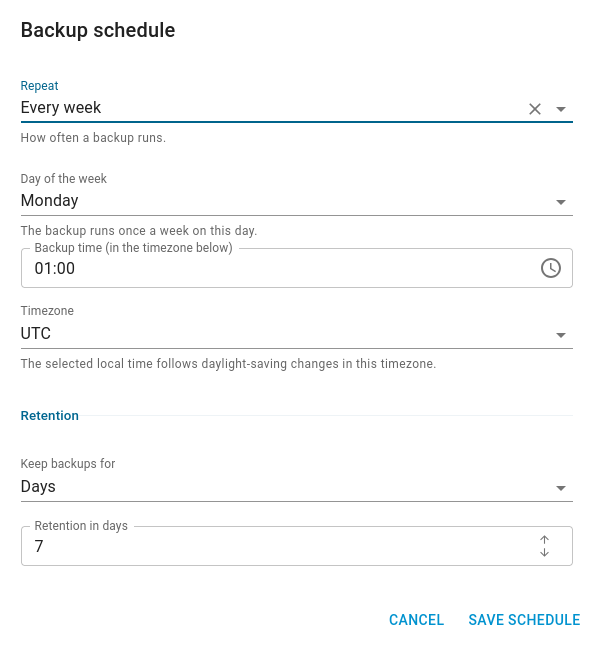
A schedule that was set earlier and is not one of the simple options is kept as Custom cron (advanced). If the schedule cannot be saved, the window shows the reason.
The card shows the state (Scheduled, Not scheduled, or Storage disconnected - a schedule exists, but the storage is not connected), a description such as Every day at 01:00 (Europe/Vienna) or Every Monday at 03:30 (UTC), the Retention and the Next run (your time). Remove schedule deletes the schedule after confirmation.
Create backup
Click CREATE BACKUP and select the databases to include in Databases (leave empty for all); an empty selection backs up every database. The field is not shown for Redis, which always backs up the whole data set. The button is not available, and its tooltip tells why, when: the storage is not connected (Connect backup storage first.), the Database is not running (Start the database before running a backup or restore.), or a backup or restore is already running (A database backup or restore is already in progress.).
Restore Database from backup
Switch the table between Restore points and Files with the toggle (the numbers show the rows of each view).
- Restore points - columns Taken, Databases (whole instance for Redis), Files, Size and Type (Backup or Pre-restore copy, see below). Use Restore… in the row Actions menu. In the window select Databases to restore (empty restores all; not shown for Redis, which is always restored completely) and keep Copy the current data first, so this restore can be undone selected (the default).
- Files - columns Name, Database, Size and Note. Use Restore in the row Actions menu to restore one file: for PostgreSQL, TimescaleDB, MySQL, MariaDB and MongoDB select the database in Restore into; Redis is restored completely after a confirmation and its keys are merged with the existing ones. Files made before backups were named after the instance (Older layout) are restored into the database you select and do not recreate the source database; files that cannot be attributed to this Database are listed with a note and cannot be restored.
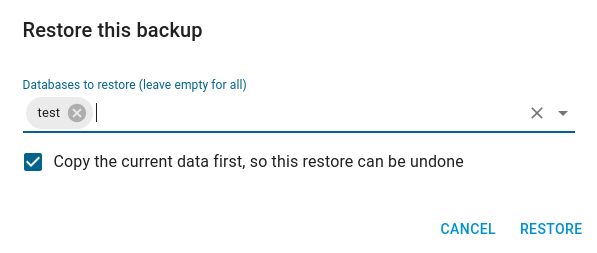
A restore replaces the data of the restored databases: it starts by dropping what it replaces. Keep Copy the current data first selected unless you do not need the current data.
If the list cannot be loaded, the red notice Could not load backups with a Retry button is shown above the table. Restoring and creating backups are not available while the Database is not running or another backup or restore is in progress.
The progress is shown as Restoring and Restore phase in the Backup block:
| Restore phase | Meaning |
|---|---|
Preparing | the copy of the current data is being taken |
Restoring | the data is being restored |
RollingBack | the restore failed, the copy of the current data is being put back |
Succeeded | the restore is finished |
RolledBack | the restore failed and the data was put back |
Failed | the restore failed and the data could not be put back; the message names the objects |
A failed restore also shows the notice Restore failed or Restore failed and was rolled back with the details.
Undo the last restore
While the copy taken before a restore exists (type Pre-restore copy, listed with your backups), the Restore recovery card shows the date of the Safety copy. It stays after a restore that finished successfully. Click Undo last restore and confirm: the databases go back to the copy, and everything written since the restore is lost. The button is not available while the storage is not connected, the Database is not running or another backup or restore is in progress.
For Redis, undoing a restore empties the keyspace and loads the copy taken before the restore, because a Redis restore is merged with the existing keys.